Add Client Contact |
  
|
Add Client Contact |
|
When you are in a Client record, click  to add a contact (you can add multiple Contacts to a Client).
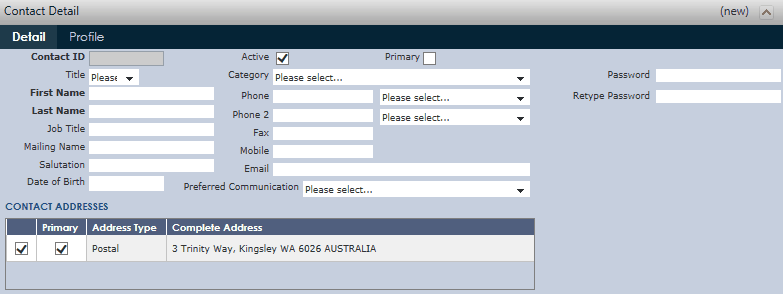
•Profile – Tailor to collect information that adds value to your business.
•Mailing Name – This will appear on all communications and mailing envelopes.
•Active – Tick the box for all contacts currently with this Client. When contact leaves, un-tick the box to deactivate them.
•Primary – Ensure that you only tick the box of one main contact for each client as their information will default into the main Client Detail screen.
•Preferred Communication – ONLY enter if the Contact agrees to receive Marketing Communications.
•Contact Address – Tick the relevant address's that applies to the contact.
•Password/ Retype Password: These fields are for UnderwriterCENTRAL™ Online access.
Once you have finished filling in the Address Details in the Main Window, click  to save all data.